
Basic authentication
Basic authentication protects your project with a username and password prompt. Visitors must enter valid credentials before viewing any content.
Use cases
Section titled “Use cases”- Staging/development sites: Prevent public access to work-in-progress
- Client preview sites: Share work with clients before go-live
- Internal tools: Restrict access to staff-only resources
- Pre-launch protection: Keep a site hidden until official launch
Configuration
Section titled “Configuration”- Navigate to the Projects section in the dashboard
- Click Edit on the project you want to protect
- Scroll to the Authentication section
- Enter a Username and Password
- Click Save
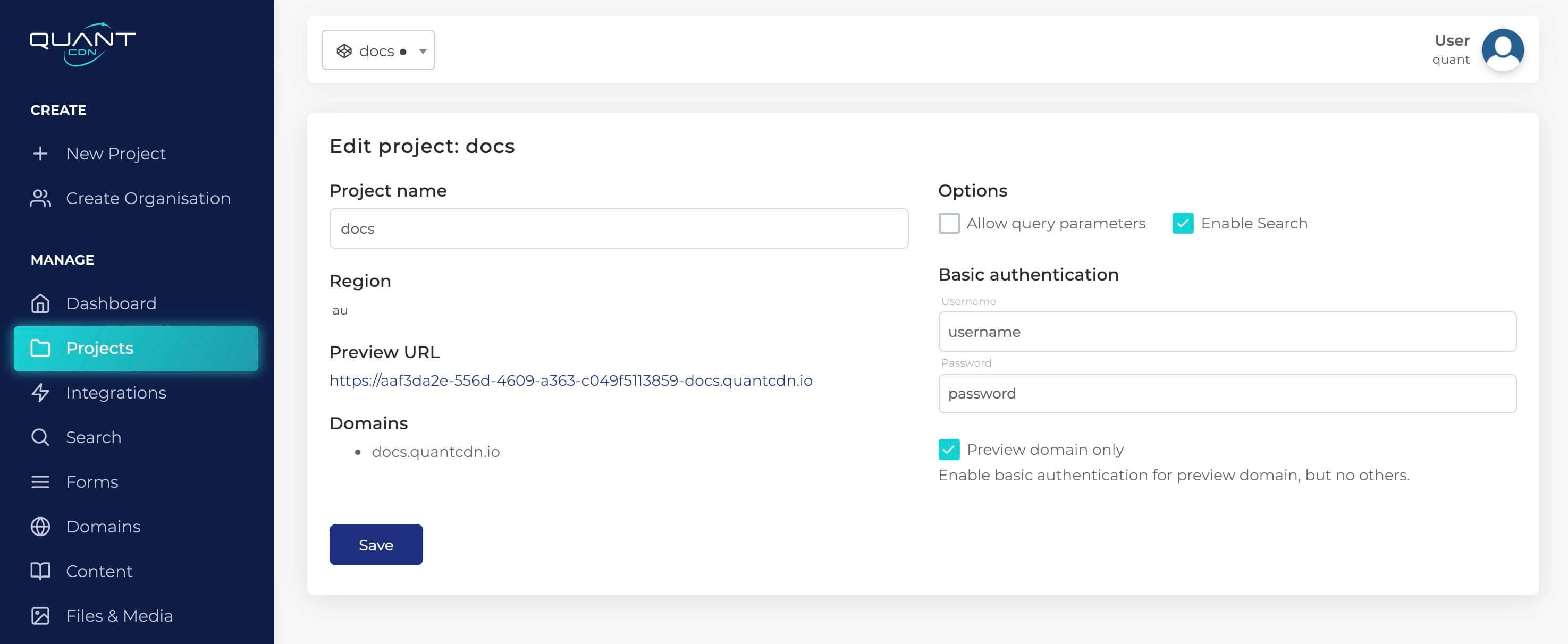
Preview domain only
Section titled “Preview domain only”Check the Preview domain only option to apply authentication only to the *.quantcdn.io preview domain while leaving your custom domains publicly accessible.
This is useful when:
- You want to test changes on the preview domain before pushing to production
- Your production domain should remain public while staging is protected
- You’re using the preview domain for client reviews
How it works
Section titled “How it works”When authentication is enabled:
- Visitors receive a browser-native username/password prompt
- Credentials are validated at the edge before any content is served
- The browser caches credentials for the session
- All paths under the project require the same credentials
Caching behaviour
Section titled “Caching behaviour”This is because authenticated content cannot be served from shared cache—each request must be validated. For most use cases this is negligible, but for high-traffic production sites, consider using Page Rules with authentication applied only to specific paths (e.g., /admin/*) rather than the entire project.
Removing authentication
Section titled “Removing authentication”To disable authentication:
- Edit the project in the dashboard
- Clear both the username and password fields (leave them empty)
- Save the project
Allow up to 30 seconds for the change to propagate across all edge locations.
Troubleshooting
Section titled “Troubleshooting”Browser keeps asking for credentials
Section titled “Browser keeps asking for credentials”Cause: The browser’s cached credentials are being rejected.
Solutions:
- Clear your browser cache and cookies for the domain
- Open an incognito/private window to test fresh
- Verify you’re using the correct username and password (they’re case-sensitive)
- Check if the password was recently changed
Can’t log in after changing password
Section titled “Can’t log in after changing password”Cause: Browser has cached the old credentials.
Solution: Clear browser cache or use a private window. The browser’s credential cache persists until explicitly cleared or the browser is closed.
401 errors on API requests
Section titled “401 errors on API requests”Cause: Programmatic requests (APIs, CI pipelines) don’t handle the authentication prompt.
Solutions:
- Include credentials in the request:
https://username:password@your-domain.com/path - Or pass an
Authorizationheader:Authorization: Basic base64(username:password)
Example with curl:
curl -u "username:password" https://your-site.quantcdn.io/Search engine indexing protected content
Section titled “Search engine indexing protected content”Cause: Search engines cannot access protected content, so they won’t index it.
Note: This is expected behaviour. Protected content should not appear in search results. If you need to protect content but still want it indexed, consider using Page Rules with bot challenge instead.
Security considerations
Section titled “Security considerations”- Choose strong credentials: Basic authentication credentials are sent with every request. Use a strong, unique password.
- HTTPS only: Quant always serves over HTTPS, encrypting credentials in transit.
- Credential sharing: Anyone with the username/password can access the site. For granular access control, consider integrating with an identity provider.
- Browser caching: Browsers cache credentials locally. Users should close their browser or clear cache when using shared computers.
Permissions
Section titled “Permissions”Only users with Developer, Administrator, or Organization owner roles can modify authentication settings.
Alternative protection methods
Section titled “Alternative protection methods”For more granular access control, consider:
- Page Rules - Protect specific paths rather than the entire project
- IP restrictions - Limit access to specific IP addresses or ranges
- Bot challenge - Require challenge completion rather than credentials
- Edge auth functions - Custom authentication logic at the edge