Web Application Firewall (WAF)
The Quant Web Application Firewall has full support for the latest OWASP Core Rule Set, as well as support for integrated Project Honeypot, bot protection, rate limiting, and geo controls.
It may be enabled with granular controls on each domain/route configured to proxy back to your origin server.
Enable WAF
Section titled “Enable WAF”The Web Application Firewall section is on the editor of a proxy rule (Traffic > Rules, then Edit on the rule). It shows only when the WAF is enabled for your organisation.
- Turn on Web Application Firewall (WAF).
- Set WAF mode to Report only or Block. Report only logs WAF hits and blocks nothing. Block blocks them.
- Set Paranoia level. This equates to the ModSecurity Core Rule Set “Paranoia” levels associated with each rule: 1 - Low (recommended), 2 - Medium, 3 - High or 4 - Extreme. The default and recommended level is 1.
- Select Update rule (or Create rule for a new rule).
The rule then shows a WAF badge on the Rules page. Turning the WAF off keeps its settings on the rule.
What turns blocking on:
- The WAF runs only on proxy rules. Content served without a proxy rule is not inspected.
- An unset mode means Report: the WAF logs hits and blocks nothing. The dashboard and the API default new rules to Report, so enabling the WAF on its own blocks nothing. Set the mode to Block (
waf_config.mode: "block") to block. - Edge case: a rule with
waf_enabled: trueand nowaf_configat all is not inspected. - A blocked request gets a
403(a rate limit gets a429) with aQuant-Waf-Ruleresponse header that names the rule. - Addresses in Allow IPs (
allow_ip) skip the WAF. - Request bodies of 20 MB or more are passed to the origin without body inspection.
- WAF logs are also available from the command line with
quant waflogs.
To test a block, request a path that the WAF blocks, with a cache-busting query string. The response is 403 with the rule ID in the header:
curl -sI "https://www.example.com/.env?cb=$RANDOM"HTTP/2 403quant-waf-rule: 930130For the full rollout (report mode, tuning, then block mode), see Configure WAF.
When enabling the WAF it is recommended you start in Report mode for a period to monitor WAF hits and find and remove false positives through standard browsing behavior. Once you are satisfied you are no longer receiving false positives, move to Block mode.
Rules and overrides
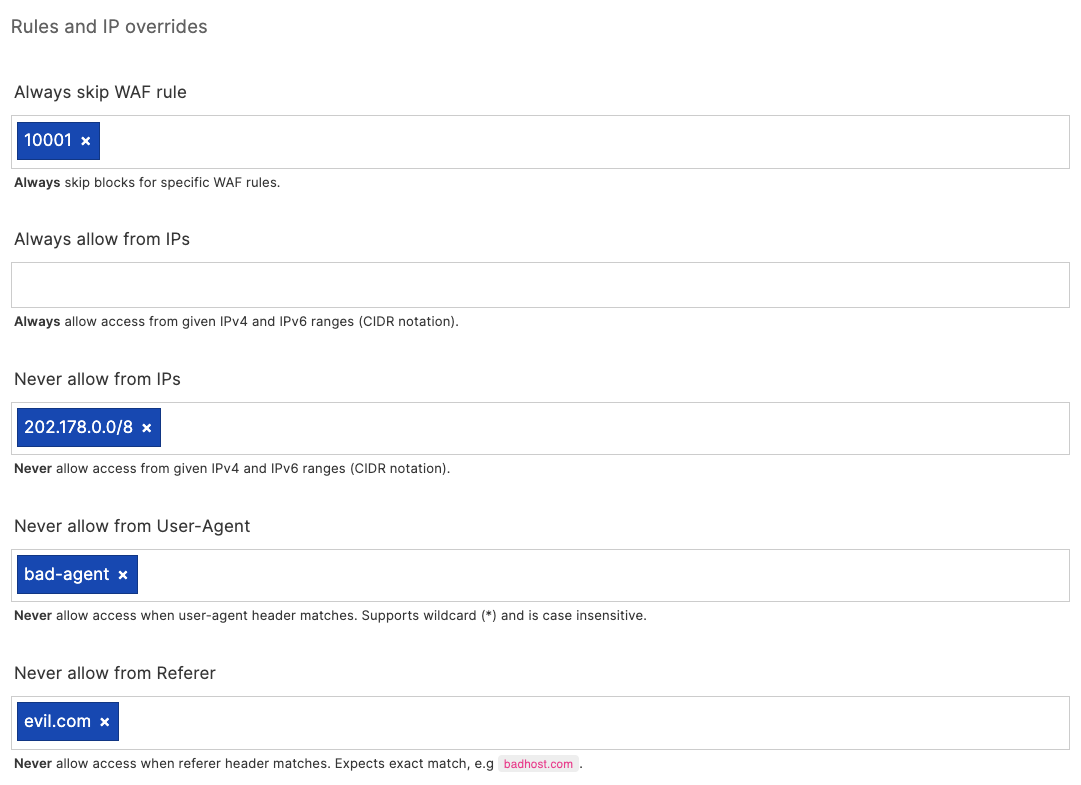
Section titled “Rules and overrides”- Allow rule IDs: WAF rule IDs that the WAF does not apply on this rule. Use it to remove false positives.
- Allow IPs: addresses that bypass the WAF checks, for trusted users or networks.
- Block IPs, Block User-Agents, Block referers and Block ASNs: requests that the WAF always blocks.
Block lists
Section titled “Block lists”In Block lists, turn on Known bad bots, Known bad referers and Known bad IPs to block bots, referers and IP addresses associated with bad actors as seen across our network. Turn on AI crawlers to block AI crawlers.
Note: We consider these safe to enable, however keep an eye on the WAF hits to ensure you are not inadvertently blocking a crawler or bot you may want to allow. These lists may be overridden if you need further control; contact support for assistance.
Http:BL (Project Honeypot)
Section titled “Http:BL (Project Honeypot)”If you are a member of Project Honeypot and have a valid API key you may integrate directly with the Http:BL service. From the Http:BL overview page:
Http:BL is a system that allows website administrators to take advantage of the data generated by Project Honey Pot in order to keep suspicious and malicious web robots off their sites. Project Honey Pot tracks harvesters, comment spammers, and other suspicious visitors to websites. Http:BL makes this data available to any member of Project Honey Pot in an easy and efficient way.
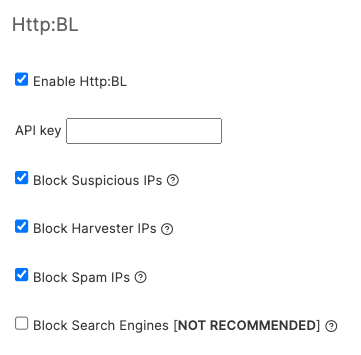
Turn on HTTP:BL (Project Honey Pot), enter your HTTP:BL API key, and choose Block suspicious, Block harvesters, Block spammers or Block search engines. These options protect against known harvesters, bots, spammers and other malicious actors as picked up by the Project Honeypot network of spam traps.
Rate limiting
Section titled “Rate limiting”Rate limiting options are a powerful protection against high traffic events.
IP rate limiting
Section titled “IP rate limiting”Each rate limit has a Mode: Disabled (the default), Report, Block or Bot Challenge.
IP-based rate limiting is useful to prevent attacks or excessive traffic from individuals, bots and crawlers. Set Requests/second (default 10) and Cooldown (seconds) (default 30). In Block mode the client receives a 429: Too Many Requests response during the cooldown, and this traffic will be kept away from your origin server.
Header-based rate limiting
Section titled “Header-based rate limiting”Header-based rate limiting groups requests by the request header in Header name. This can be used on an API service for instance to limit requests by a known group (for example, X-API-Organization), or any other identifier as seen in the request headers.
As with IP rate limiting, set Requests/second (default 5) and Cooldown (seconds) (default 30).
WAF hit rate limiting
Section titled “WAF hit rate limiting”WAF hit rate limiting (auto-ban on repeated violations) limits an IP address that triggers WAF rules again and again: Hits threshold (default 10) hits Within minutes (default 5), then a Cooldown (seconds) (default 300).
Notifications
Section titled “Notifications”Enter a WAF Slack webhook to receive WAF alerts in Slack. Set Min RPM to notify to notify only when hits exceed that rate per minute.
Custom 403 error pages
Section titled “Custom 403 error pages”When a request is blocked by the WAF you may wish to display a custom 403 page explaining why, and allowing them an avenue to contact you if they feel the block is a false positive.
Create a new static page at the /_quant_waf_403 route. You may wish to use the WYSIWYG or Code editors to do this, see the Content section for more detail.
Log viewer
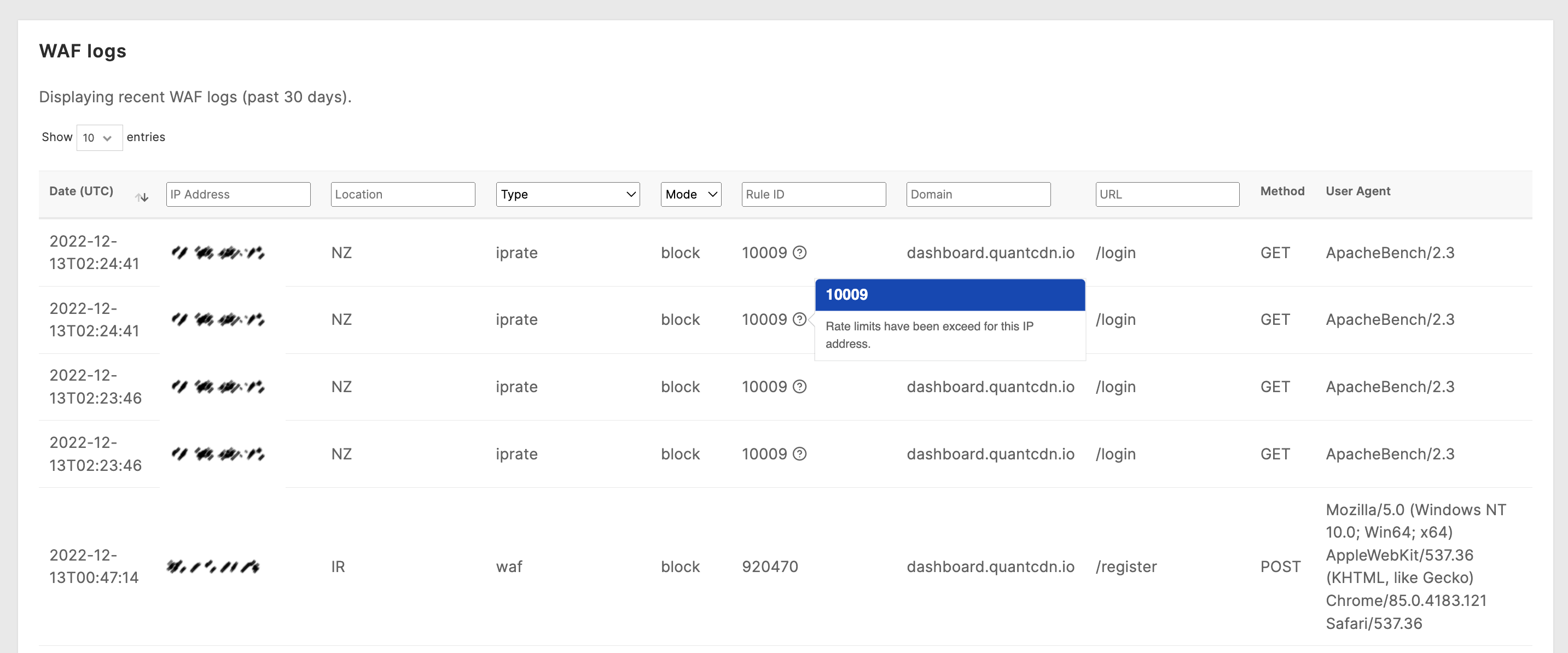
Section titled “Log viewer”The last 30 days of WAF hits are stored and can be viewed directly via the log viewer in the Quant Dashboard.
In the project, go to Security > WAF logs. Each hit shows the IP address, location, type, mode (report or block), rule ID, domain, URL, method and user agent.
WAF hits also show in Compute > Edge function logs when you turn on Include WAF hits.