
Break-glass: switch the site to its static copy
When a critical flaw in your CMS or application becomes public, a site with a static copy can keep serving its public pages while you fix the application. You disable the proxy rules, so the Quant edge answers from the static copy and sends no request on to the application. When the fix is live, you enable the rules again.
Write this runbook down for your site, with the names of your rules and applications and the person who does each step. Test it once, before you need it.
The runbook has four parts:
- Prepare, before you need it.
- Switch the site to the static copy.
- While switched, fix the application.
- Switch back.
What the switch does and does not do
Section titled “What the switch does and does not do”- With no proxy rule left to match, the edge serves the project’s static content for each path. A page that is in the copy returns
200. A page that is not in the copy returns404. See how rules are evaluated. - A disabled rule stops Quant forwarding requests. It does not stop the application. If the application can be reached at its own address, it still answers there. Stop it or restrict its host (step 5 of the switch).
- A rule change purges nothing, and the rules run only when a request misses the cache. Purge the cache after you switch, and again after you switch back. See How Quant caches.
- Other rules keep working. A password rule above the proxy rule still returns
401on the admin paths without the right credentials. Rules below the proxy rule can now match paths that the proxy rule answered before. Check them before you switch.
What stops working while the site is switched
Section titled “What stops working while the site is switched”- Anything that the application answers: forms that post to the application, search that the application provides, login, editing and any other admin page. A request to a path that is not in the copy returns
404. On a path behind a password rule, the edge returns401until the visitor gives the right credentials, then404. A Quant Forms form on a stored page is handled at the edge and keeps working. - Pages that are not in the copy. The copy holds only the pages that the crawler stored.
- Fresh content. Each page is as old as the crawl that last changed it. The crawler stores a page again only when it has changed, so an unchanged page keeps the date of the crawl that first stored it. Check the dates in Content before you switch.
Prepare, before you need it
Section titled “Prepare, before you need it”-
Make a complete static copy. Crawl every public page of the site. See Crawler: in the project, Crawl > Configs, New Config, then the row menu of the config, Run all.
- Until you verify the domain, a crawl stops at 50 pages. If the site has more than 50 public pages, verify the domain first.
- Crawl only pages that a visitor can open without signing in.
- If the site loads styles, images or scripts from another domain, add that domain to Allowed domains. See Multi-domain crawling.
-
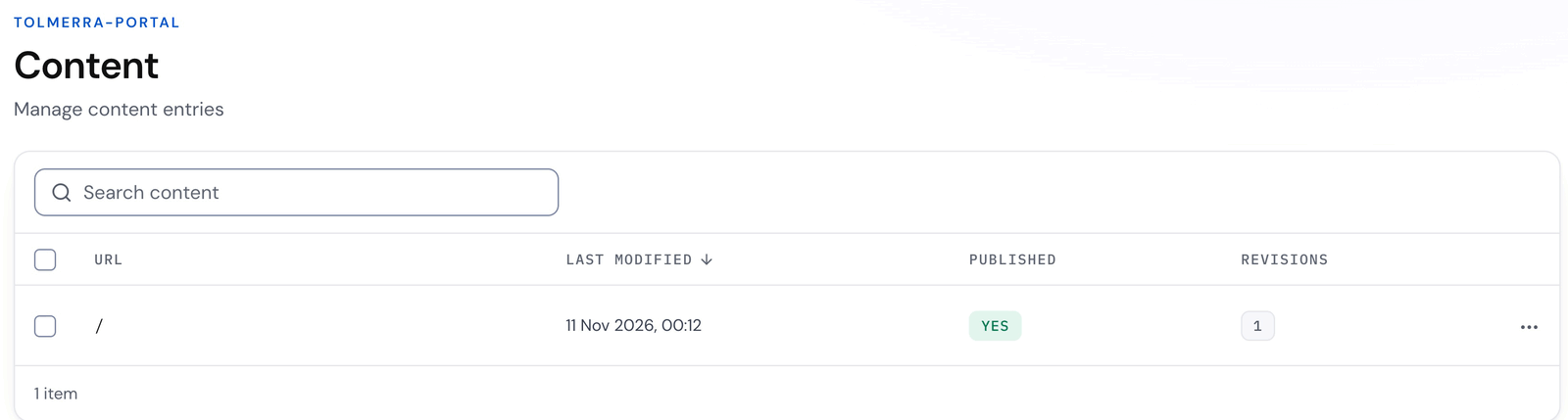
Check what the copy holds. Open Content in the project sidebar. It lists each stored page with Last modified, Published and Revisions. Compare the list with your sitemap or page list, and crawl the pages that are missing.
-
List every route to the application. Open Traffic > Rules and write down each rule that can reach the application:
- every Proxy rule, including a rule with Only proxy on 404 turned on. Such a rule sends each path that is not in the copy to the application;
- every Edge function, Edge Auth or Content filter rule whose function fetches the application;
- every scheduled function (Compute > Scheduled execution) that calls the application.
A rule with the badge Managed in code has no Disable item in the dashboard. Note where it is managed, for example
quant/edge-rules.jsonin a repository. See Rules in code. A rule that Terraform or Pulumi manages has no badge, so note those rules too.Do the same in every other Quant project that proxies to this application, for example an editorial, preview or staging project.
-
Know how to take the application off the internet. For a Quant Cloud application, that is
qc env state stop. For an application on other hosting, write down how to block public access to its host, for example at its firewall. -
Know who uses the project token. Rotating the token stops every copy of the old token: the Drupal module or WordPress plugin, CI jobs, quant-cli configuration, scripts, crawlers and crawler webhooks. Write the list down.
-
Know your crawl schedules. Crawl > Schedules lists them, with Frequency and Crawl config. The dashboard cannot pause a schedule, so you delete it with the API and add it again later. Write down each schedule’s name and cron expression.
-
Test the runbook once on a staging project, or at a quiet time on the live site. Time each step, check the test results, and fix the runbook where it was wrong.
Switch to the static copy
Section titled “Switch to the static copy”1. Pause scheduled crawls
Section titled “1. Pause scheduled crawls”A crawl stores what the application serves at that moment. A crawl of a defaced site replaces the clean copy with defaced pages. Do not start a crawl until the fix is live, and delete the schedules with the dashboard API:
API=https://dashboard.quantcdn.io/api/v2/organizations/{organization}/projects/{project}
# List the crawler configs of the project; each has a uuid.curl -s -H "Authorization: Bearer $QUANT_API_TOKEN" "$API/crawlers"
# List the schedules of one config; keep the name and schedule_cron_string of each.curl -s -H "Authorization: Bearer $QUANT_API_TOKEN" "$API/crawlers/{crawler_uuid}/schedules"
# Delete one schedule.curl -s -X DELETE -H "Authorization: Bearer $QUANT_API_TOKEN" \  "$API/crawlers/{crawler_uuid}/schedules/{schedule_id}"
On QuantGov, use https://dash.quantgov.cloud. The lists need a dashboard API token with the crawlers:read scope, and the delete needs crawlers:write. The config uuid is also in the address of the config’s edit page, /crawl/config/edit/{uuid}. If you manage schedules with Terraform (quant_crawler_schedule), remove them there.
2. Stop content pushes
Section titled “2. Stop content pushes”If the CMS may be compromised, stop it from pushing content to the project, so it cannot replace the stored pages. Rotate the project token, so the token in the CMS stops working.
- In the project, open Project > Integrations.
- In Integration details, next to Token, select Rotate token.
- In When must the old token stop working?, choose Now. With Now, the old token stops working within one minute.
- Type the project name, and select Rotate token.
- Copy the new token. It shows once. Do not put it into the CMS until the fix is live.
If the portal deploys the project from GitHub, it updates the QUANT_TOKEN secret there.
3. Disable the proxy rules
Section titled “3. Disable the proxy rules”-
In the project, open Traffic > Rules.
-
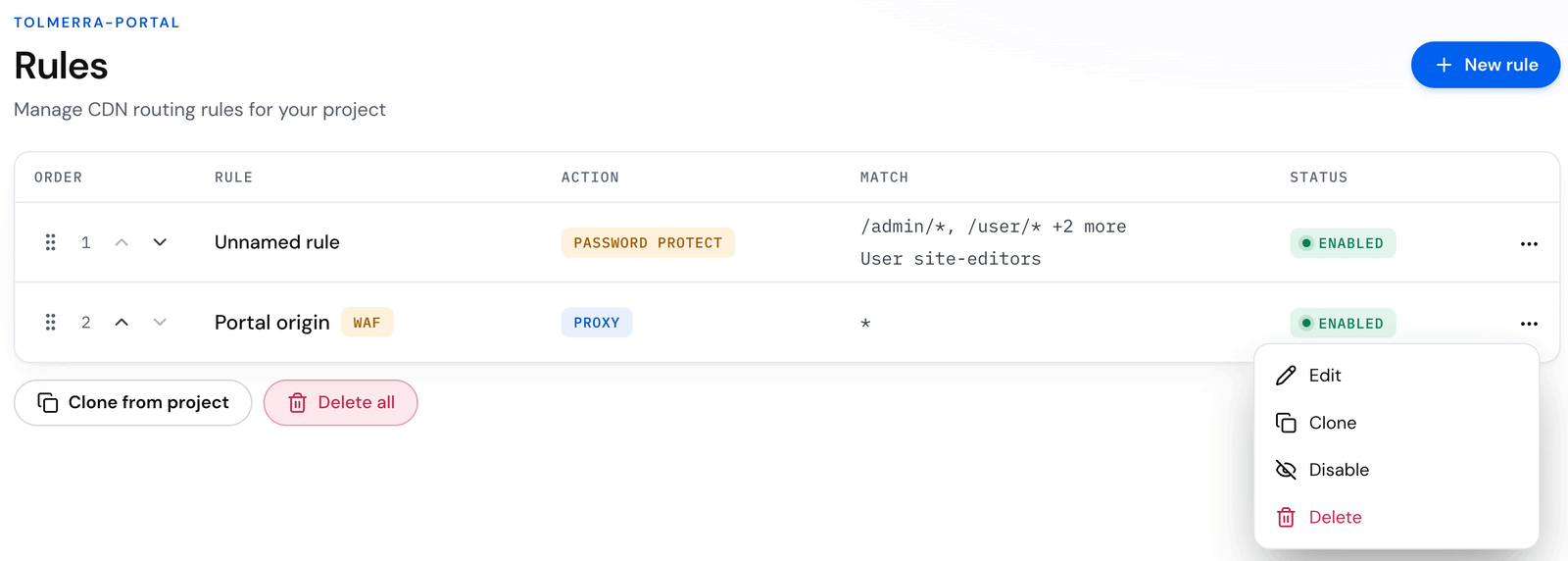
On the row of the proxy rule, open the menu at the end of the row.
-
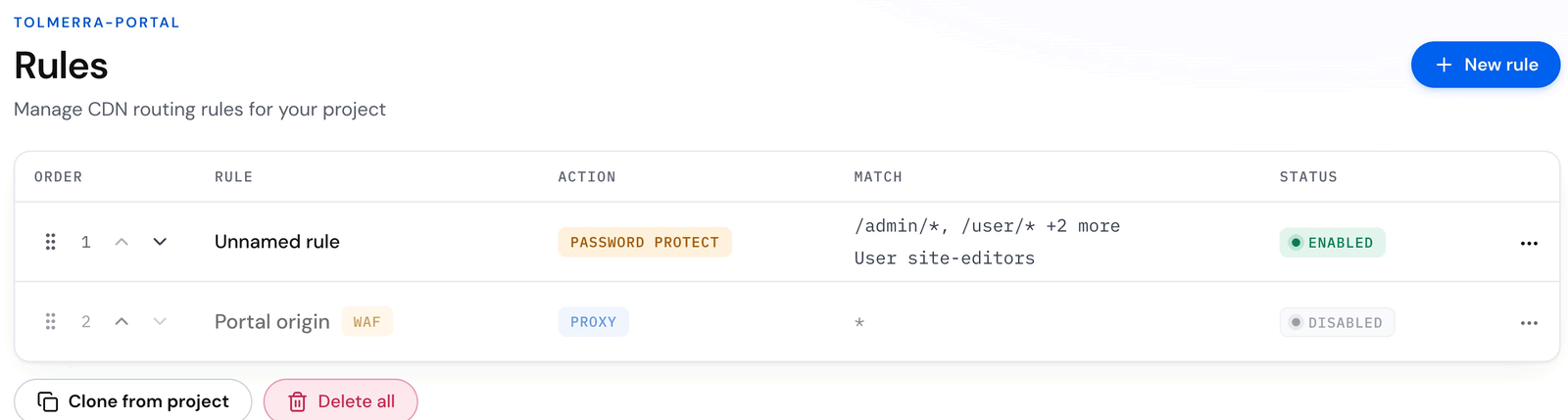
Choose Disable. The page shows “Saving…”, and the Status of the rule changes to Disabled. There is no confirmation dialog.
-
Do the same for each proxy rule on your list, including rules with Only proxy on 404, and in each other project on your list.
If Terraform or Pulumi manages a proxy rule, set disabled = true in the code and apply it, or pause the pipeline. A Disable in the dashboard is drift, and the next apply enables the rule again.
A rule change can take up to about two minutes to reach every edge location. If the CMS still answers in the test, wait and test again.
4. Disable the other routes to the application
Section titled “4. Disable the other routes to the application”For each edge function, Edge Auth or content filter rule on your list, disable the rule in the same menu, or change the function so it does not call the application. A scheduled function has no off switch in the dashboard: change the function, or write down the schedule’s settings and delete it in Compute > Scheduled execution.
For a rule that is Managed in code, set "disabled": true for the rule where it is managed, and deploy the change. This applies to proxy rules too.
5. Stop the application, or restrict its host
Section titled “5. Stop the application, or restrict its host”For a Quant Cloud application:
qc env state stop --org example-org --app example-app --env productionFor an application on other hosting, block public access to its host, for example at its firewall.
Stop or restrict every other environment that runs the same code, for example staging and preview environments. They have the same flaw.
6. Purge the cache
Section titled “6. Purge the cache”Responses that the edge cached from the application before the switch are still served until they expire, because the rules run only on a cache miss.
- In the project, open Traffic > Cache purge.
- In Purge URL, enter
/*. - If the page shows Soft purge (mark as stale), turn it off, so the old responses are removed and not kept as stale copies.
- Select Purge.
A purge is accepted at once and can take a few minutes to complete. See Purge via the dashboard.
7. Test the switch
Section titled “7. Test the switch”Test with a cache buster first. $RANDOM is a shell variable (bash and zsh) that gives a new number each time, and each query string is a separate cache entry, so the request misses the cache and the rules run again. The query string does not change which rule matches, because rules match on the path.
SITE=https://www.example.comcurl -sI "$SITE/?cb=$RANDOM"curl -sI "$SITE/?cb=$RANDOM" | grep -ci "x-generator\|x-powered-by"curl -sI "$SITE/a-page-that-is-not-in-the-copy?cb=$RANDOM" | head -1curl -sI "$SITE/user/login?cb=$RANDOM" | head -1curl -s "$SITE/?cb=$RANDOM" | grep -o "<title>[^<]*"Look for:
HTTP/2 200for a stored page, and none of the headers that your CMS or its server sends. Drupal sendsx-generator, and PHP sendsx-powered-by, so thegrep -cicount must be0. WordPress also sends alinkheader that points to/wp-json/; it must be gone too.- The same
<title>as the page had before the switch. Write down the known-good title when you prepare. - A
last-modifiedheader with the date of the crawl that stored the page, andcache-control: s-maxage=2592000. 404for a page that is not in the copy.401on a path behind a password rule, for example/user/loginon Drupal or/wp-login.phpon WordPress.
This is the response for a stored page in our test on a staging project (some lines removed):
HTTP/2 200content-type: text/html; charset=UTF-8server: CloudFrontcache-control: s-maxage=2592000etag: 1771b748d777b838b0849328c69a6858last-modified: Tue, 10 Nov 2026 14:12:35 GMTx-cache: Miss from cloudfrontBefore the switch, the same request returned server: Apache/2.4.69 (Debian), x-generator: Drupal 11 and x-powered-by: PHP/8.4.27.
When the purge is complete, test once more without the cache buster. This is the response that visitors get from the cache:
curl -sI "$SITE/"If Redirect trailing slashes is on in the project settings, a path that ends in / returns 301 to the same path without the slash, so test pages by their address without the trailing slash.
While the site is switched
Section titled “While the site is switched”- Keep the proxy rules disabled until the fix is live.
- If the CMS may have been compromised, take a backup of the database and files for investigation before you change them.
- Patch the application and deploy the fix. For a Quant Cloud application, rebuild the image on the fixed base image and deploy it.
- If the CMS may have been compromised, check its content and its user accounts before you switch back.
Switch back
Section titled “Switch back”1. Start the application and check it
Section titled “1. Start the application and check it”qc env state start --org example-org --app example-app --env productionCheck that the application answers with the fix, at its own address or from a host you allow. If production runs more than one task, check that the environment runs the number of tasks that you expect.
If you rotated the token, put the new token into the CMS module or plugin now, so the CMS can push again.
2. Enable the proxy rules
Section titled “2. Enable the proxy rules”-
Open Traffic > Rules.
-
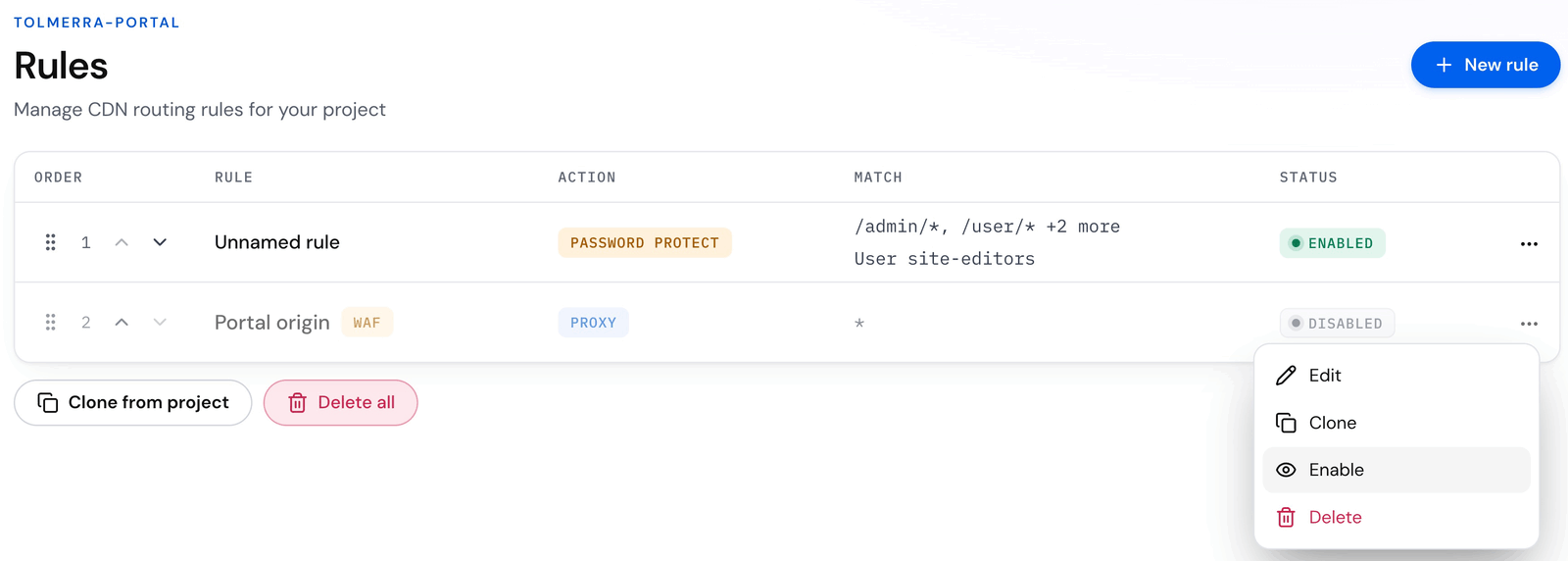
On the row of the proxy rule, open the menu at the end of the row, and choose Enable. The Status changes to Enabled.
-
Do the same for each rule that you disabled, and add back the scheduled functions that you deleted.
3. Purge the cache
Section titled “3. Purge the cache”Purge /* again, as in step 6 of the switch. Without the purge, visitors keep getting the static copy: stored pages are cached at the edge for up to 30 days (s-maxage=2592000). The edge’s own 404 page is cached for 5 seconds (max-age=5), and a trailing-slash 301 for up to one day (s-maxage=86400).
4. Test again
Section titled “4. Test again”curl -sI "$SITE/?cb=$RANDOM"curl -sI "$SITE/"The headers of your CMS are back, for example x-generator and x-powered-by. A path behind a password rule still returns 401.
5. Restore the rest
Section titled “5. Restore the rest”-
If you rotated the token, put the new token into every other place on your list.
-
Add the crawl schedules again with the names and cron strings that you wrote down. Crawl > Schedules has no add button, so use the API (the token needs
crawlers:write) or Terraform:Terminal window curl -s -X POST -H "Authorization: Bearer $QUANT_API_TOKEN" -H "Content-Type: application/json" \-d '{"name": "Nightly", "schedule_cron_string": "0 16 * * *"}' \"$API/crawlers/{crawler_uuid}/schedules"See Scheduling.
-
When you have checked that the content is clean, run a crawl, so the copy is current for the next time.