
A second lock on the admin areas
When a proxy rule sends every request to a CMS, the CMS admin pages and its login page can be reached by anyone who finds them. A Password protect rule above the proxy rule asks for a separate user name and password at the Quant edge. A request without them gets a 401 from the edge and never reaches the CMS. With them, the request goes on to the CMS, and the CMS login still applies.
The rule protects only the requests that come through Quant. If your origin can also be reached on its own address, restrict the origin so it accepts only requests through Quant, for example at its firewall or with a secret header that your origin checks. See Security best practice.
This guide uses the dashboard Rules page. For how rules are matched, see Page Rules.
Before you start
Section titled “Before you start”- A Quant project with a proxy rule that sends requests to your Drupal or WordPress site.
- A user name and a long password for the edge. Do not use the password of any CMS account. Use ASCII characters only. Do not put a colon (
:) in the user name, because HTTP basic authentication (RFC 7617) does not allow one. The edge cannot encode a character outside Latin-1. - The list of paths for your CMS (below).
The paths to protect
Section titled “The paths to protect”A URL pattern matches the whole path, and is case-insensitive. A * matches one or more characters, including /. So /admin/* matches /admin/config but not /admin, and you must list both.
Drupal
Section titled “Drupal”These paths are for Drupal 8 or later. Drupal 7 also shows the login form at /user and reads the path from the q query parameter (/?q=user/login, /index.php?q=user/login). A URL pattern cannot match every spelling of a query string, so for a Drupal 7 site add /user, /?q=user* and /?q=admin*, and lock the origin to Quant as well.
| Path | Why it is on the list |
|---|---|
/admin |
The admin start page. /admin/* does not match it. |
/admin/* |
Every admin page under /admin/. |
/user/* |
The login form (/user/login), the password reset form (/user/password) and the registration form (/user/register). With /user/login alone on the list, /user/password stayed open in our test. |
/index.php/* |
Drupal also answers paths under /index.php/. In our test, /index.php/user/login served the login form outside a rule that listed only /admin, /admin/* and /user/login. |
/user/* also asks for the edge password on one-time login links (/user/reset/...) and on public user profile pages. Check that this suits the site. If editors sign in through a one-time login link, give them the edge password too.
Some Drupal editing pages are outside /admin. Drupal asks for its own login on them, so they are optional. Add them if you want the edge password there too:
| Path | Page |
|---|---|
/node/add and /node/add/* |
Create content |
/node/*/edit |
Edit content |
/node/*/delete |
Delete content |
/update.php and /update.php/* |
Database updates |
WordPress
Section titled “WordPress”| Path | Why it is on the list |
|---|---|
/wp-admin |
The admin start page. /wp-admin/* does not match it. |
/wp-admin/* |
Every admin page under /wp-admin/. |
/wp-login.php |
The login form, and the password reset form (/wp-login.php?action=lostpassword). A pattern without ? ignores the query string, so this one pattern covers both. |
/wp-login.php/* |
PHP accepts extra path info (as in the Quant Cloud WordPress image), so /wp-login.php/x can still run the login script. /wp-login.php does not match it. |
/xmlrpc.php |
The XML-RPC endpoint, which takes a WordPress user name and password with each call. The WordPress mobile app and some integrations use it. If you use them, give their users the edge password or leave /xmlrpc.php off the list. |
/xmlrpc.php/* |
The same path-info form of the XML-RPC endpoint. |
On a multisite installation, also add /wp-signup.php and /wp-activate.php. If WordPress is installed in a subdirectory, put the subdirectory in front of each path (for example /blog/wp-admin). A plugin can add its own login page, for example the WooCommerce account page /my-account/. Decide for each one whether customers or only staff use it.
Leave /wp-json/* (the REST API) open. The block editor and many themes and plugins call it from the browser, often without the edge password, so a password on it breaks them. WordPress checks its own login on the REST API calls that change content.
/wp-admin/* also covers /wp-admin/admin-ajax.php. Some themes and plugins call it for anonymous visitors, so after the change, test the public pages that use forms, search or filters. If the public site needs admin-ajax.php, give it its own copy of the proxy rule:
- On the Rules page, open the actions menu of the proxy rule and choose Clone. The copy is added below the original, disabled, with
[copy]after its name. - Edit the copy. In URL match, remove
*and enter/wp-admin/admin-ajax.phponly. Keep the WAF on, with the same settings as the original. - Turn off Disabled, and select Update rule.
- Move the copy above the password rule.
If the site puts a language prefix in its paths (for example /fr/admin), test the prefixed paths too.
Step 1: Create the password rule
Section titled “Step 1: Create the password rule”-
In the dashboard, open your project and go to Traffic > Rules.
-
Select New rule.
-
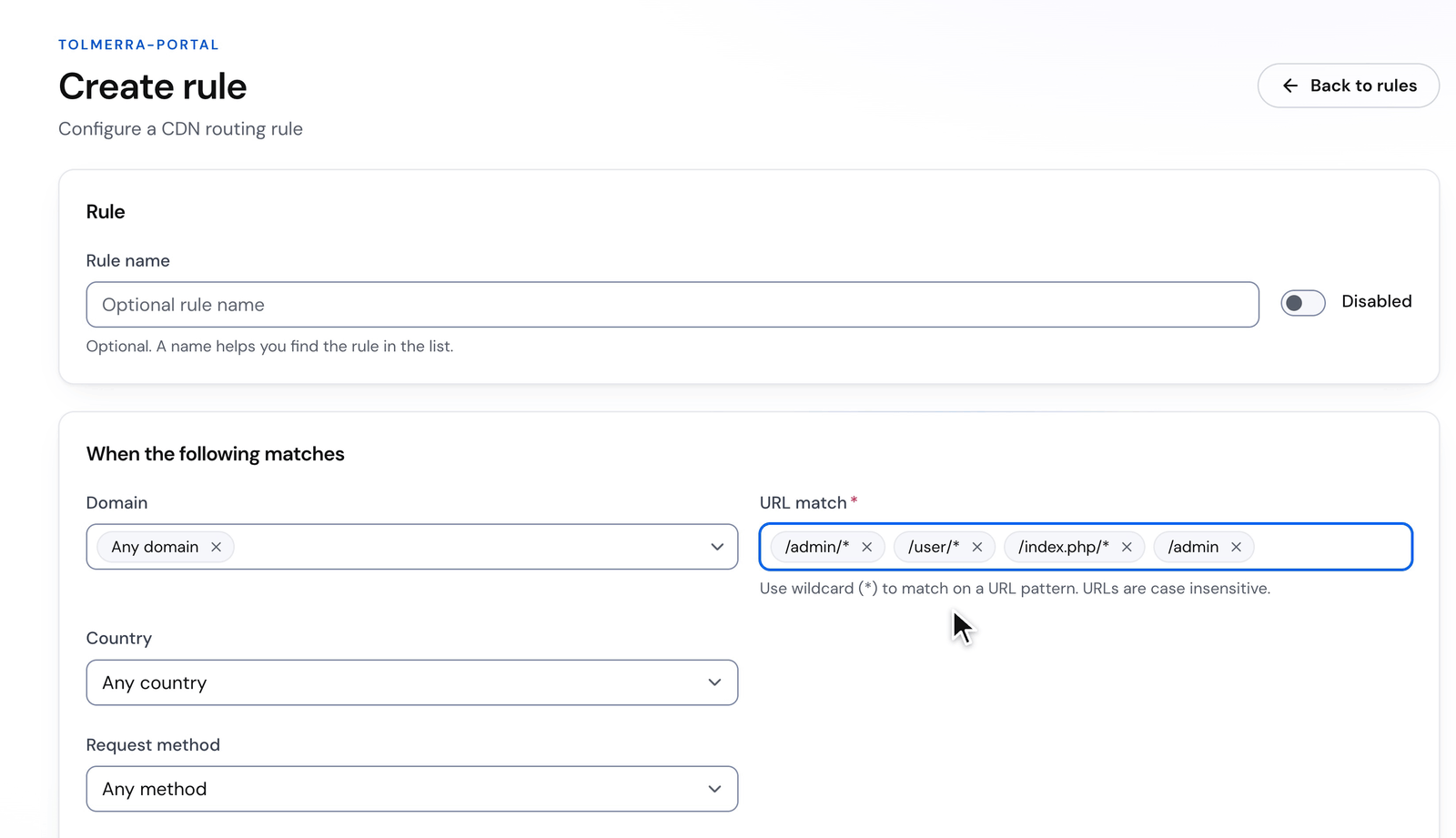
Optional: in Rule name, enter a name such as
Admin password. -
In URL match, type each path from the list for your CMS and press Enter after each one. Each path becomes a separate item.
-
Keep Domain at Any domain to protect the paths on every domain of the project.
-
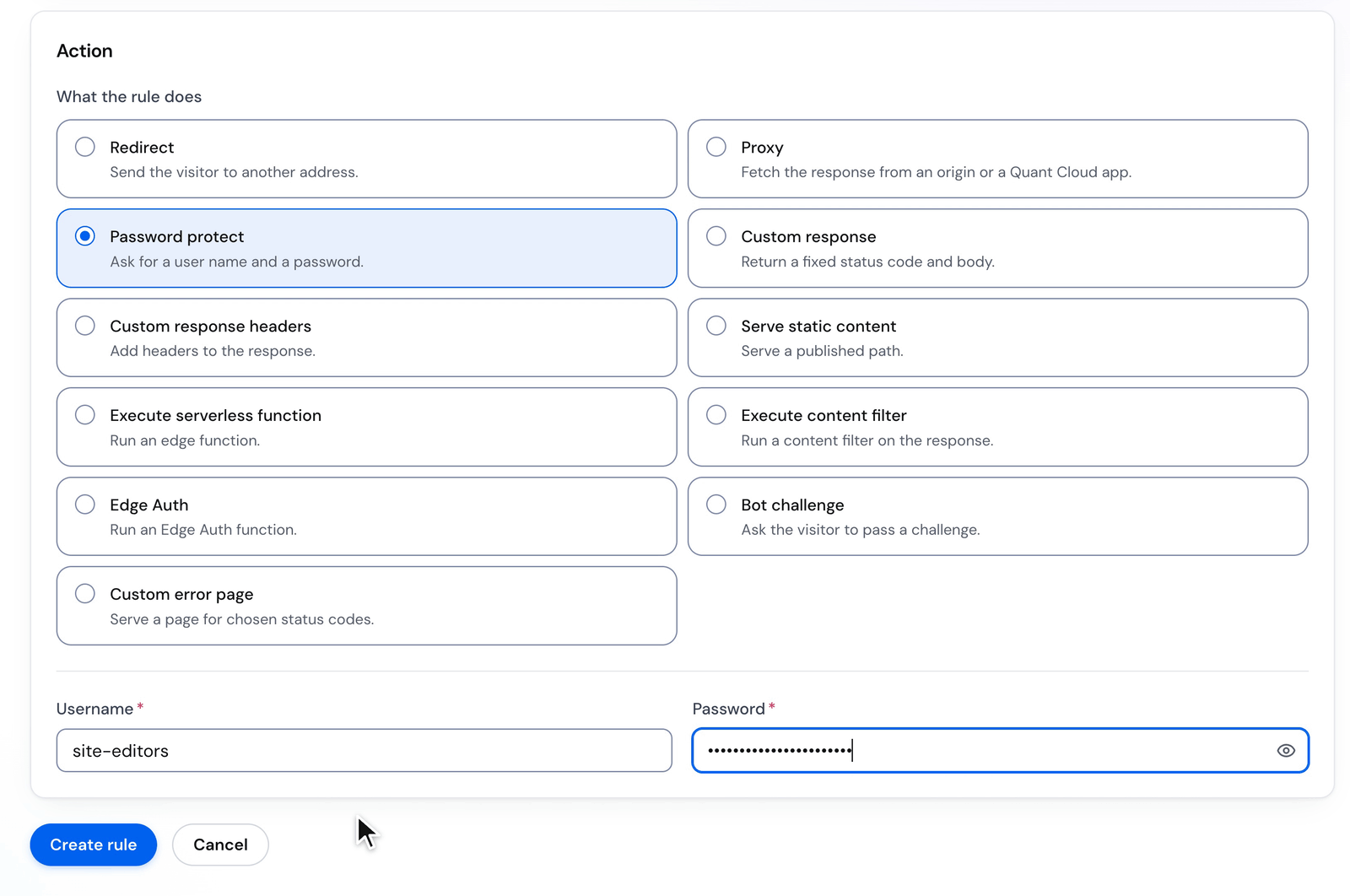
Under Action, choose Password protect.
-
In Username and Password, enter the edge user name and the long password.
-
Select Create rule.
Step 2: Move the rule above the proxy rule
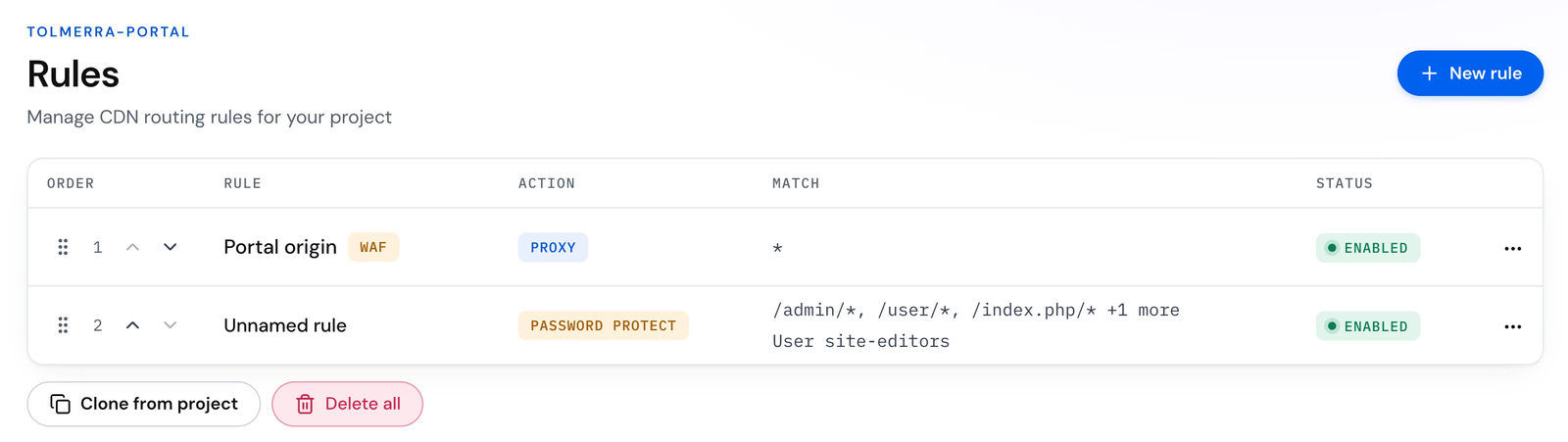
Section titled “Step 2: Move the rule above the proxy rule”Rules run from the top of the list. The first rule that answers a request wins, and the rules below it are not checked. A proxy rule on * answers every request, so a password rule below it never runs.
A new rule is added at the end of the list.
-
On the Rules page, find the password rule.
-
Select its Move up arrow until the rule is above every rule that serves or proxies those paths. You can also drag the rule by its handle.
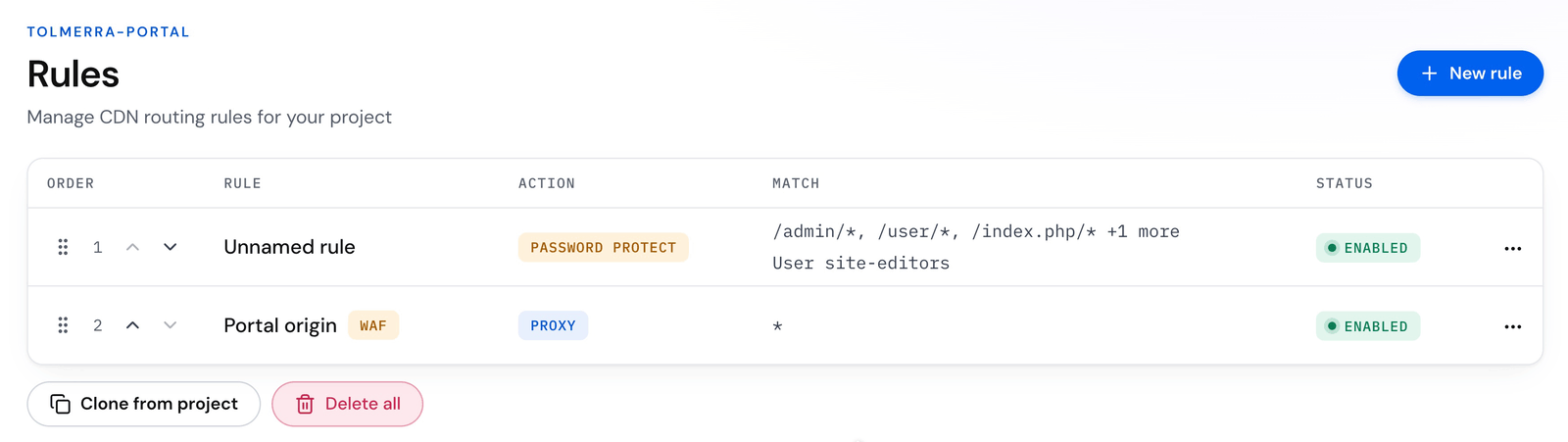
A password rule ends processing only when the user name or password is missing or wrong. With the correct credentials, Quant checks the next rule, so the proxy rule below sends the request on to the CMS.
The proxy rule sends the browser’s Authorization header (the edge user name and password) on to the origin, unless Origin auth username and Origin auth password are both set on the proxy rule. If Drupal’s HTTP Basic Authentication module is on, Drupal refuses every page request that carries those credentials with a 403 (“The used authentication method is not allowed on this route”). If the CMS does not use HTTP authentication, the origin has no need of the edge password. In both cases, edit the proxy rule, add Authorization to Strip request headers, and select Update rule.
Step 3: Purge the cached copies
Section titled “Step 3: Purge the cached copies”A response already in the cache is served without a check of the rules. A request that has an Authorization header is not cached, but a page that was cached before the rule existed can still be served without the password. Purge those copies:
- In the project, go to Traffic > Cache purge.
- In Purge URL, enter a path from your list and select Purge. Repeat for each path. If the page says that wildcards work, you can enter a pattern such as
/admin/*. On a QuantCDN project, turn off Soft purge (mark as stale) first, so the copies are removed and not only marked stale.
Step 4: Test the rule
Section titled “Step 4: Test the rule”-
Request an admin path without the edge password:
Terminal window curl -sI "https://www.example.com/admin?cb=$RANDOM"On WordPress, use
/wp-adminin place of/admin. The response is401from Quant, with these headers:HTTP/2 401cache-control: privatewww-authenticate: Basic realm=Authorization Required -
Repeat the request for each path on your list, and for the forms the list covers (for example
/user/password, or/wp-login.php,/wp-login.php/xand/xmlrpc.php/xon WordPress). Each one must return401. -
Request the home page. It must return
200, as before. -
Request an admin path with the edge user name (here
admin-gate; use the user name you set in Step 1). curl asks for the password, so the password does not go into your shell history:Terminal window curl -sI -u admin-gate "https://www.example.com/admin?cb=$RANDOM"The response now comes from the CMS. Drupal returns
403for/adminto a visitor who has not signed in to Drupal, and WordPress redirects/wp-adminto its login form. -
In a browser, open the admin path. The browser asks for the edge user name and password, then shows the CMS login page.
Optional: let a trusted network skip the edge password
Section titled “Optional: let a trusted network skip the edge password”Each rule condition must hold for the rule to match. To let a trusted network reach the CMS login without the edge password, add an IP condition to the password rule:
- On the Rules page, open the actions menu of the password rule and choose Edit.
- In IP restrictions, choose IP address is not one of….
- In IP address is not one of, enter the addresses or CIDR ranges of your office or VPN (for example
203.0.113.0/24). - Select Update rule.
A request from those addresses does not match the password rule, so the next rule (the proxy rule) answers it. Every other address still gets the 401. Responses on a rule with an IP condition are not cached, which suits admin paths. See IP restrictions.
Optional: your own sign-in check with Edge Auth
Section titled “Optional: your own sign-in check with Edge Auth”To use your own sign-in check (for example single sign-on) instead of a shared password, use an auth function:
- Write and publish an auth function. See Auth middleware. It is listed in the project under Compute > Auth middleware.
- Create the rule as in Step 1, but under Action choose Edge Auth and enter the function’s UUID in Edge Auth UUID.
- Move the rule above the proxy rule, as in Step 2.
When the function returns status 201, Quant checks the next rule. Any other response from the function goes to the visitor. If the function cannot run, the rule returns 503 and the request does not reach the CMS. This happens when the UUID is malformed, the function is missing or not published, or the function is not an auth function.
Related
Section titled “Related”- Configure WAF: the WAF on the proxy rule that reaches the CMS
- Page Rules: rule order, URL patterns and conditions
- Security best practice